
Welcome to the 207th edition of the Windows 365 Community newsletter! This week, we bring you the latest Windows 365 news, free events, and expert tips & tricks from the world of Cloud PC.
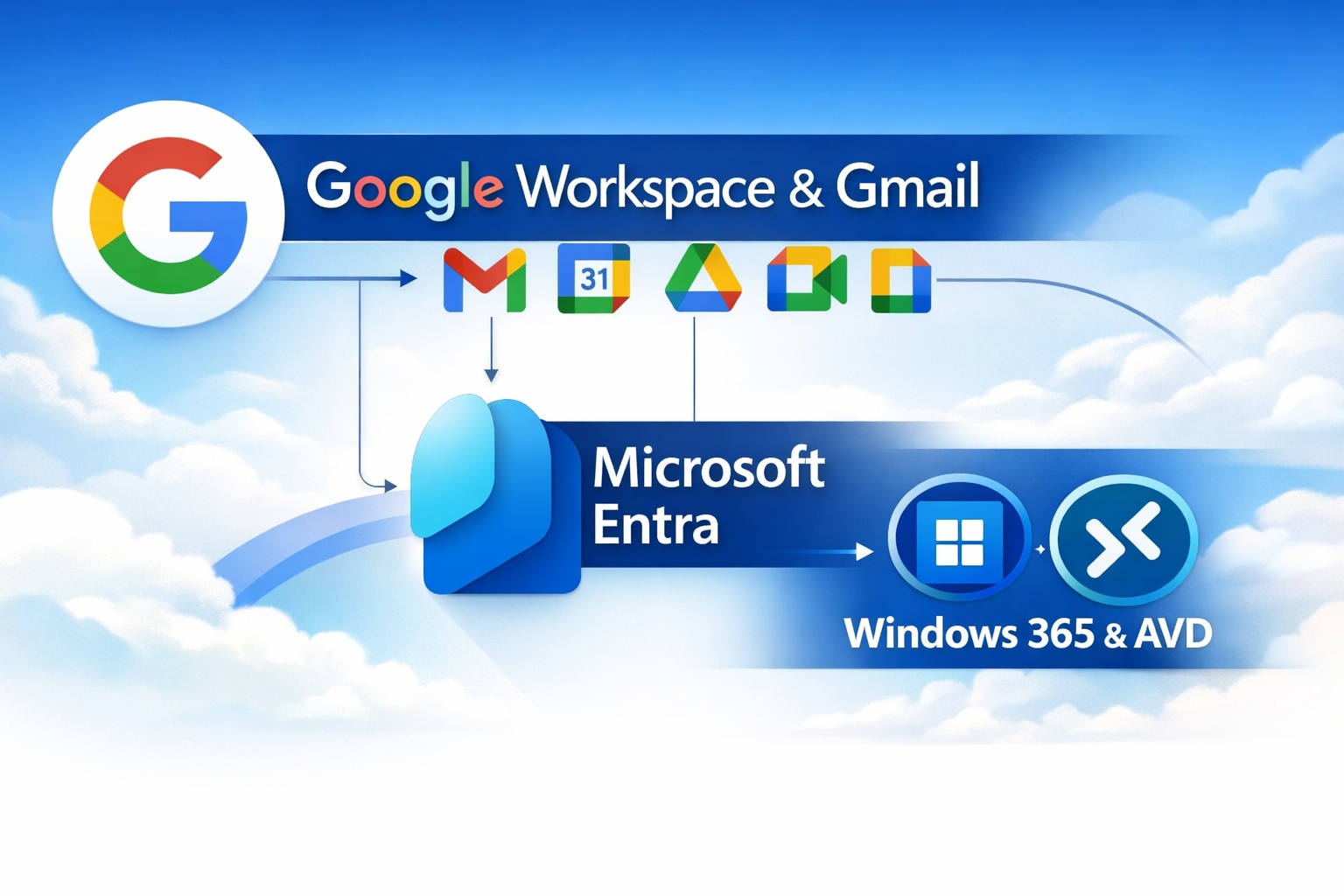
Using Google Workspace and Gmail as External Identities in Windows 365
In this blog post, Dieter Kempeneers explains how organizations can let users sign in to Windows 365 and Azure Virtual Desktop using either personal Gmail accounts or Google Workspace identities. It walks through the two very different configuration paths: OAuth for personal Gmail and a full SAML identity provider setup for Google Workspace. He highlights why Google Workspace accounts are generally the better choice, mainly because they support proper lifecycle management and stronger security. Dieter also covers how to invite these external users into Microsoft Entra, how the sign‑in flow works in the Windows App, and how to fix the extra Microsoft‑account prompt that otherwise blocks Cloud PC access.
Visit: Using Google Workspace and Gmail as External Identities in Windows 365
How to Configure New Windows App Settings for Windows 365 using Intune
In this blog post, Vaishnav K explains how administrators can use the new Windows App Settings (Preview) feature in Microsoft Intune to control which self‑service actions users can perform on their Windows 365 Cloud PCs. The feature allows IT teams to enable or disable two main capabilities, Reset and Restore, giving users guided recovery options while reducing support overhead. Vaishnav walks through creating a Windows App Settings policy in Intune, assigning it to user groups, and then demonstrates what the Reset and Restore experiences look like from the end‑user perspective.
Visit: How to Configure New Windows App Settings for Windows 365 using Intune
Automatically Enroll Windows 365 Business Cloud PCs in Intune
In this blog post, Prajwal Desai explains how administrators can ensure that newly provisioned Windows 365 Business Cloud PCs are automatically enrolled into Microsoft Intune for management. It outlines the prerequisites, then walks through two enrollment methods: configuring the settings in the Microsoft 365 Admin Center or enabling enrollment directly through Windows365.microsoft.com. He also shows how to verify that Cloud PCs have successfully enrolled and highlights the permissions required, specifically the Windows 365 Administrator role.
Visit: Automatically Enroll Windows 365 Business Cloud PCs in Intune
Modern Provisioning for Cloud PCs: Windows Autopilot Device Preparation and Windows 365 Enterprise
In this blog post, Nicky De Westelinck walks through configuring Windows Autopilot Device Preparation for Windows 365 Enterprise Cloud PCs. He explains the required setup in Microsoft Entra ID, including creating an Enrollment Time Grouping device group and a user group, then shows how to build an Autopilot Device Preparation policy tailored for Cloud PCs. Nicky continues to create a Windows 365 provisioning policy in Intune, assign it to users, and monitor deployment status. He also emphasizes that integrating Device Preparation into Windows 365 results in more predictable, consistent, and cloud‑native provisioning, improving both IT efficiency and the end‑user onboarding experience.

Visit: Modern Provisioning for Cloud PCs: Windows Autopilot Device Preparation and Windows 365 Enterprise
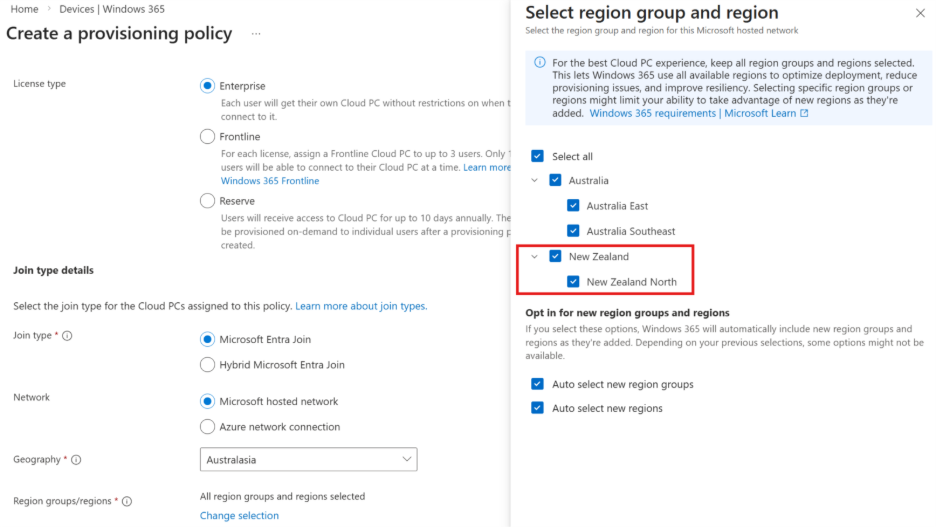
Windows 365 now supported in New Zealand North
Microsoft has announced that Windows 365 is now available in the New Zealand North region, bringing Cloud PCs even closer to their customers around the world. With this expansion, organizations in and around New Zealand can benefit from lower latency, improved performance, and local data residency, all delivered through our trusted Microsoft Cloud. This new region strengthens our global coverage and supports customers who need to keep data within national borders, meet industry or government compliance expectations, or simply provide their workforce with a faster, more consistent Cloud PC experience.
Visit: Windows 365 now supported in New Zealand North
Azure Default Outbound Access Changes: Guidance for Windows 365 ANC Customers
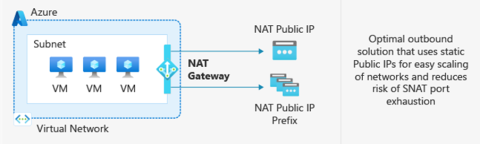
Microsoft has announced that after March 31, 2026, newly created Azure Virtual Networks (VNets) will no longer have default outbound internet access enabled by default. Windows 365 customers choosing Azure Network Connection as a deployment option must configure outbound connectivity explicitly when setting up new VNets. This post explains what’s changing, who’s impacted, and the recommended actions, including Azure Private Subnets and Microsoft Hosted Network.
Visit: Azure Default Outbound Access Changes: Guidance for Windows 365 ANC Customers