

Welcome to the 219th edition of the Windows 365 Community newsletter! This week, we bring you the latest Windows 365 news, free events, and expert tips & tricks from the world of Cloud PC.
Using context-based redirections for Windows 365
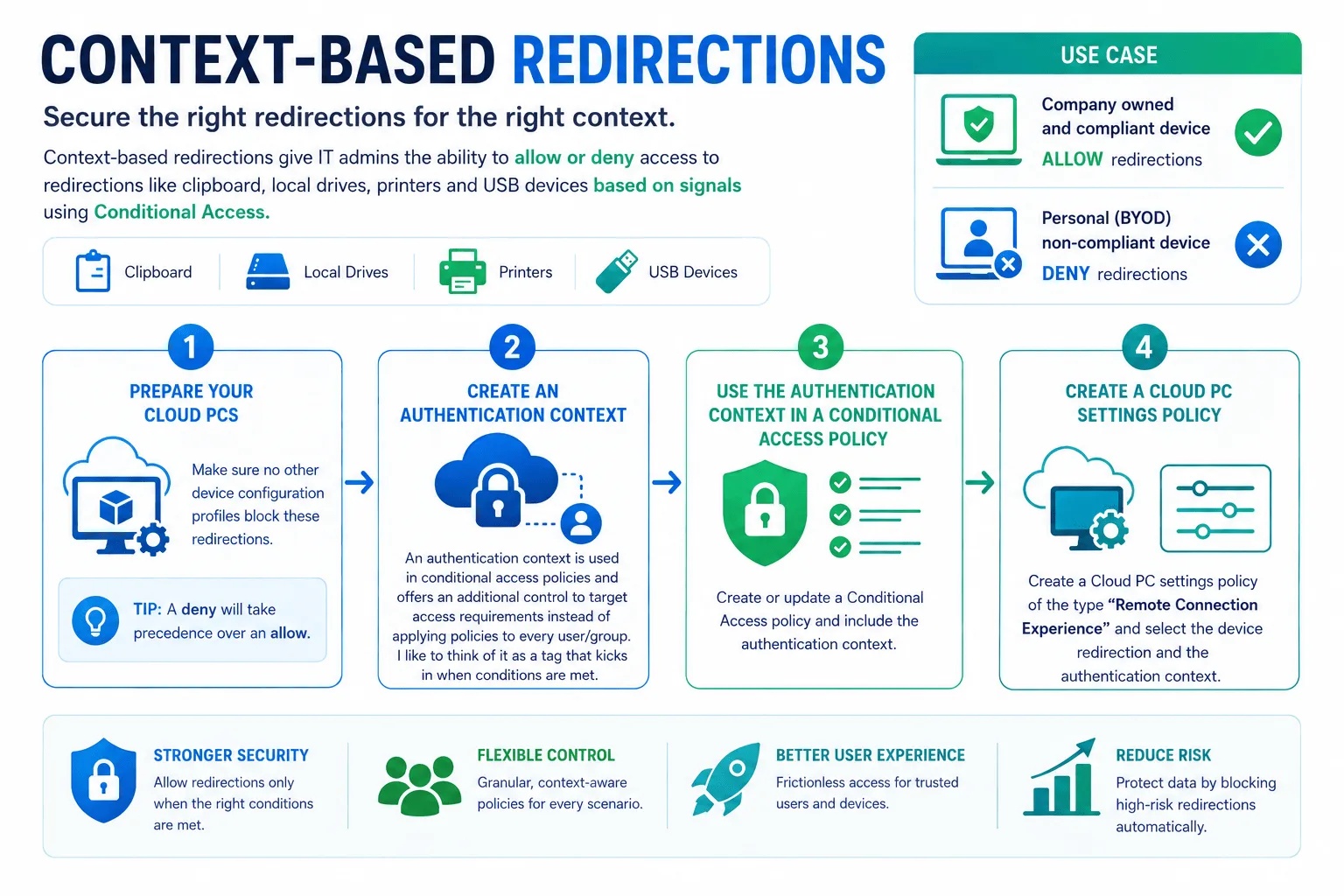
In this blog post, Dominiek Verham explains how context‑based redirections allow Windows 365 and Azure Virtual Desktop to dynamically enable or block device redirections – such as clipboard, drives, printers, and USB – based on the compliance state of the device connecting to the Cloud PC. Microsoft now turns these redirections off by default to improve security, and this feature lets admins selectively re‑enable them only for trusted, compliant devices.
Dominiek walks through the full setup: creating an authentication context in Entra ID, applying it in a Conditional Access policy that requires compliant devices, and then configuring a Remote Connection Experience policy in Intune to tie redirection behavior to that authentication context. He also notes that existing device configuration policies blocking redirections will override this setup unless adjusted Current pageCurrent page. Are you in a situation where you are using device configuration policies to block redirections to Windows 365 Cloud PCs?
Visit: Using context-based redirections for Windows 365
Configure Windows 365 context-based redirections
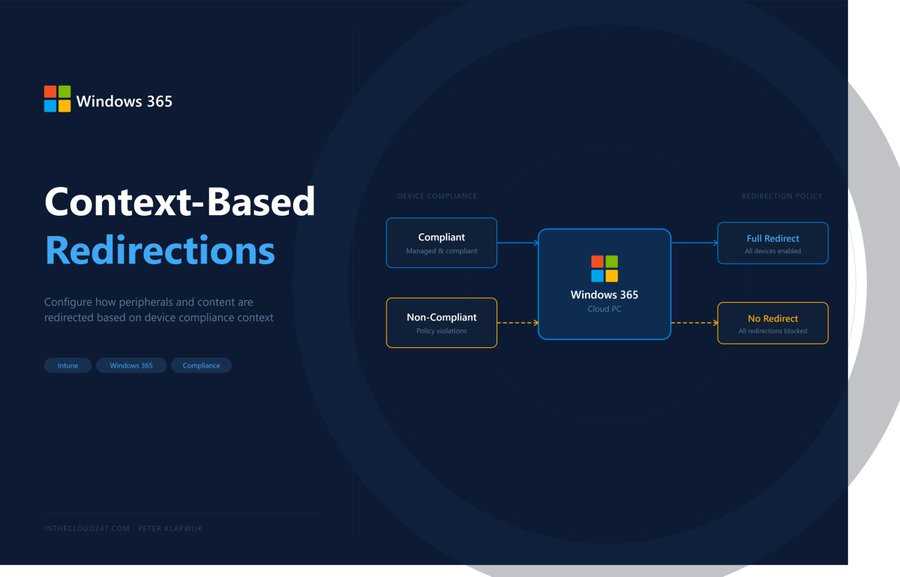
In this blog post, Peter Klapwijk outlines how Windows 365 now supports context‑based redirections, allowing clipboard, drive, printer, and USB redirection to be dynamically allowed or blocked based on the trust level of the connecting device. Instead of the old allow/deny model, admins can now use Authentication Context and Conditional Access to grant redirections on compliant devices while automatically blocking them on unmanaged ones. He walks through configuring Intune redirection settings, creating an authentication context, enforcing it with Conditional Access, and applying it in a Windows 365 Remote Connection Experience policy. The result is a more secure and flexible setup.
Visit: Configure Windows 365 context-based redirections
Context-based Redirections for Azure Virtual Desktop and Windows 365, now in Public Preview!
In this blog post, Chris Cavazos explains that Microsoft has released Context-based Redirections for Azure Virtual Desktop and Windows 365 as a Public Preview. This new capability lets administrators control device redirections – such as clipboard, printers, drives, and USB – based on Conditional Access authentication contexts. By tying redirection permissions to a Conditional Access policy, organizations can ensure that only trusted and compliant devices receive full redirection capabilities, while personal or unmanaged devices automatically get restricted access.
Visit: Context-based Redirections for Azure Virtual Desktop and Windows 365, now in Public Preview!
Optimizing Cloud PCs with Liquidware ProfileUnity: An updated guide
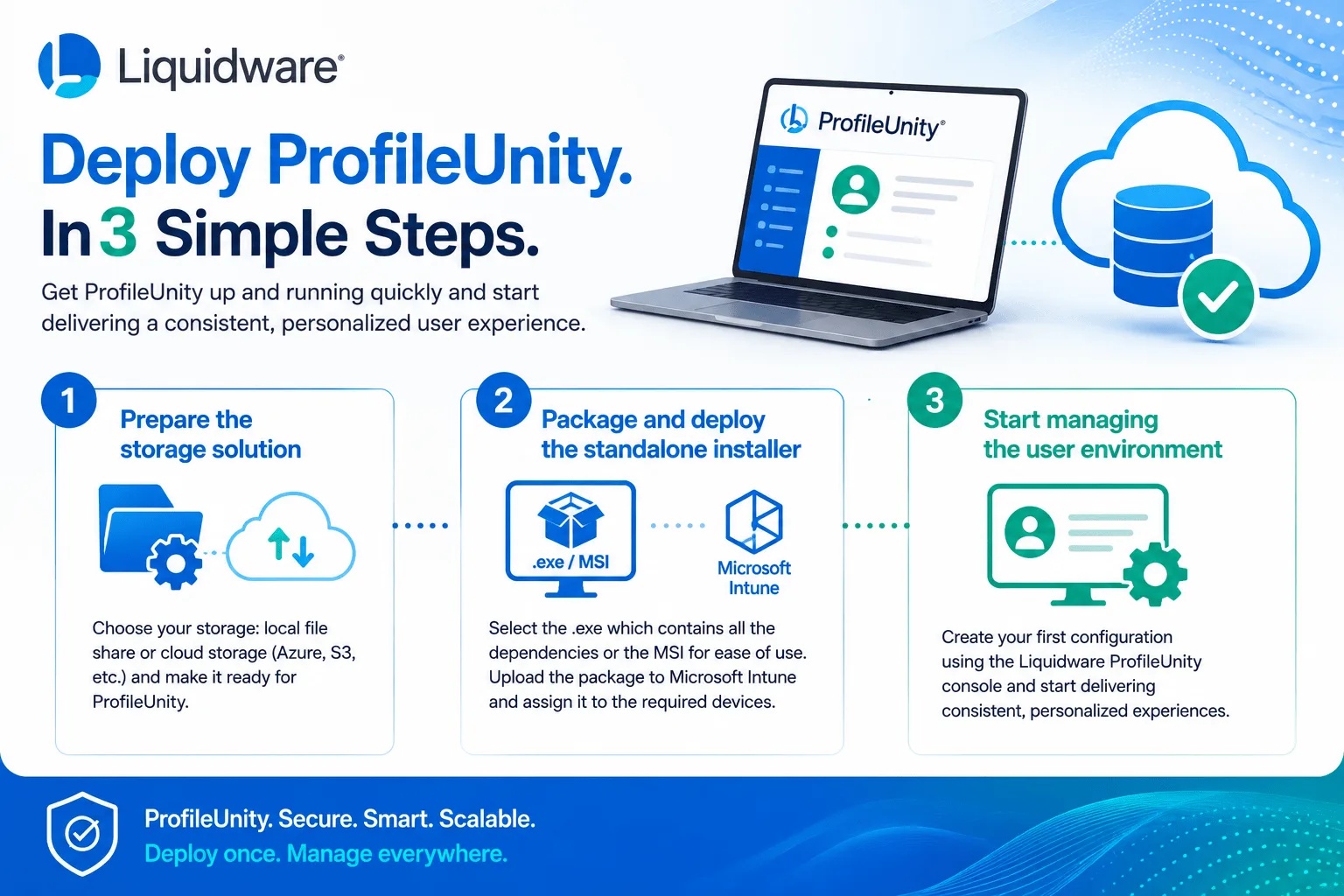
In this blog post, Dominiek Verham explains how to deploy and optimize Liquidware ProfileUnity on Windows 365 Cloud PCs, Azure Virtual Desktop, and Intune-managed Windows 11 devices. He highlights that the new standalone installer dramatically simplifies deployment by removing the need for scripts and allowing a straightforward Intune-based installation.
Dominiek first walks through preparing the environment, including setting up two Azure Storage Accounts: one for configuration data and one for portability settings. He details how ProfileUnity stores configuration files (.ini/.xml) and portability data, and stresses the required read/write permissions for each storage location. He then demonstrates how to create containers, generate access keys and SAS tokens, and add these storage accounts to the ProfileUnity console using cloud credentials.
Visit: Optimizing Cloud PCs with Liquidware ProfileUnity: An updated guide
Windows365/Cloud PC provisioning
In this video, Dean Cefola (Azure Academy) introduces Windows 365 Cloud Apps, a new capability that lets organizations publish individual applications from Shared Cloud PCs rather than providing users with a full desktop. He explains how Cloud Apps work, how they compare to AVD RemoteApps, how Frontline/Flex licensing fits in, and how Shared Cloud PCs improve resource efficiency. The video also covers app publishing through Intune, user data handling, and best practices for delivering a streamlined, secure Windows 365 experience.