

Welcome to the 216th edition of the Windows 365 Community newsletter! This week, we bring you the latest Windows 365 news, free events, and expert tips & tricks from the world of Cloud PC.
Importing custom images from an Azure Compute Gallery is now generally available
Windows 365 Enterprise lets you use either built‑in gallery images or custom device images stored in Azure to provision Cloud PCs. To add a custom image, you upload it through the Microsoft Intune admin center by selecting the image, providing a name and version, and linking it to the appropriate Azure subscription.
Only images that meet prerequisites, such as being supported Windows 11 Enterprise single‑session images and properly prepared in Azure, can be imported.
Organizations can create their own images or convert existing Azure Compute Gallery images into managed images before importing them. Of course you can keep things simple and stick to Microsoft’s gallery images.
Read the full post here: Importing custom images from an Azure Compute Gallery is now generally available
Teams RemoteApp and CloudApp support for Windows App is now generally available
Slimcore-based Teams optimization is now supported for RemoteApps and CloudApps in the Windows App. This update enables Teams features beyond desktop sessions, with SlimCore-based optimization for improved performance. Support is limited to Windows App; non-Windows clients are not included.
Read the full post here: Teams RemoteApp and CloudApp support for Windows App is now generally available
Windows 365: Flexible Modern Cloud PCs to match modern workstyles
Windows 365 has evolved from a simple one‑user‑one‑Cloud‑PC model into a flexible platform with multiple deployment and licensing options to meet modern work needs. Its growing adoption is largely driven by its simplicity and ability to support a wide range of use cases while maintaining a SaaS‑like experience.
The platform now includes different editions such as Business, Enterprise, Government, and Windows 365 Flex, each designed for specific organizational requirements.
Windows 365 Flex introduces shared and dedicated modes, allowing multiple users to efficiently share Cloud PC resources, which is ideal for shift workers or distributed teams.
Read the full post here: Travis Roberts – Windows 365: Flexible Modern Cloud PCs to match modern workstyles
I stopped giving users Cloud PCs & You should too
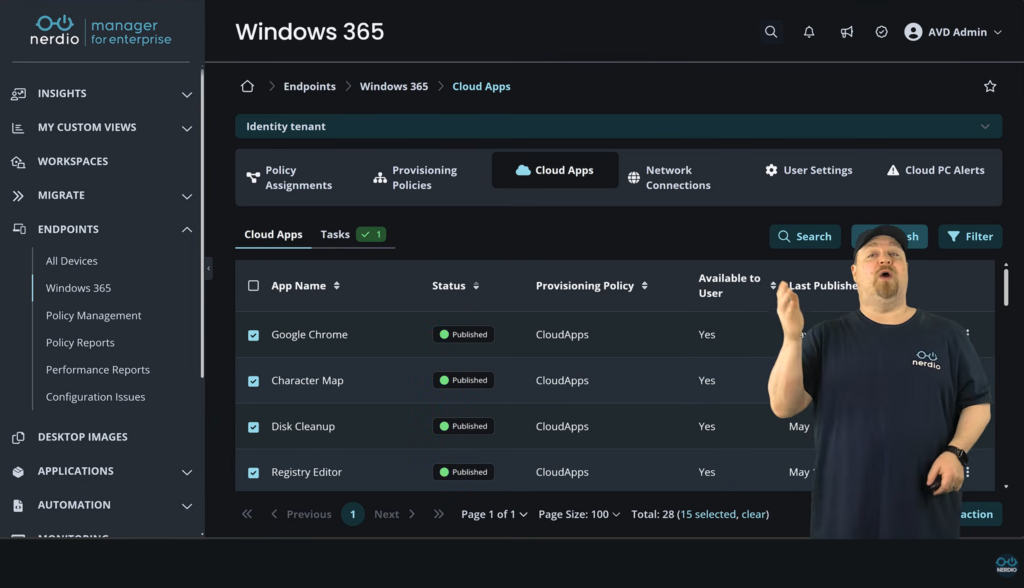
Don’t panic by the title! Dean Cefola still loves Cloud PCs and in his video he will talk about the benefits of using Windows 365 Cloud Apps instead of a full desktop. He shows how to configure Cloud Apps using Microsoft Intune and Nerdio Manager.
View the full video here: Azure Academy – I stopped giving users Cloud PCs & you should too
Provisioning Windows 365 Flex in shared mode with Intune
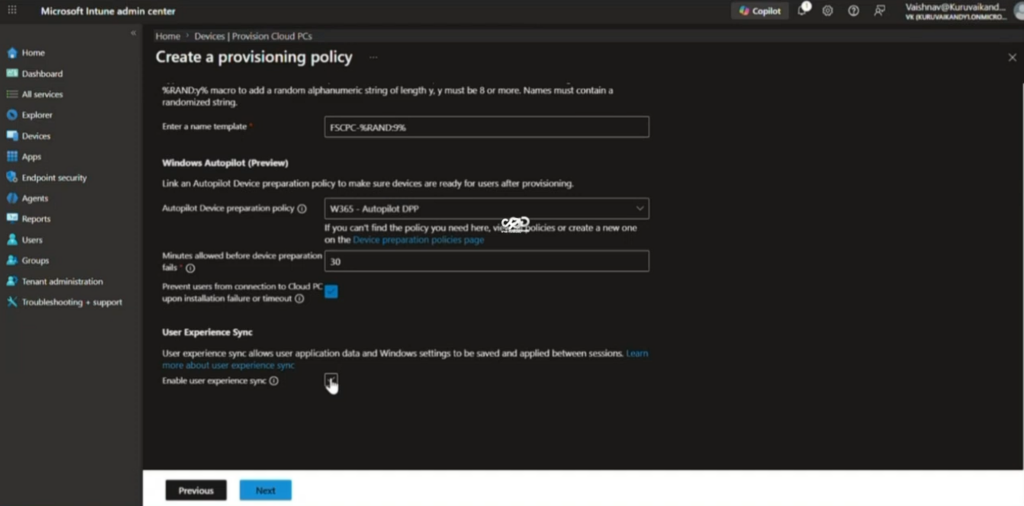
In this video Vaishnav covers the use case for Windows 365 Flex, formerly known as Windows 365 Frontline, in dedicated and shared mode along with the technical prerequisites. He elaborates on the subject by explaining the concurrency buffer and the relative new User Experience Sync solution.
View the full video here: Vaishnav K – Provisioning Windows 365 Flex shared Cloud PCs with Intune
That’s all for this week’s roundup! We love seeing how this community keeps pushing the boundaries of what’s possible with Windows 365. Jump into the forums, share your latest learnings, and let’s keep the momentum going!
See you next Friday!




1 comment